Partenze
Il Programma della Stagione 2026-27
Care amiche e cari amici del teatro,
quello che ha preso forma lungo questi mesi non è stato un semplice fluire di eventi, ma un’esperienza collettiva, intessuta di riflessioni, interrogativi e relazioni. Ogni presenza ha lasciato un segno, ciascun confronto ha acceso una scintilla, componendo una geografia emotiva che nutre visioni e dà corpo a progetti. In questo percorso, il teatro si è rivelato luogo necessario, profondamente intrecciato al respiro della città. Dentro questo stesso orizzonte si rinnova la volontà di rendere il Teatro Kismet una soglia viva e permeabile, un presidio culturale da abitare, pronto ad abbracciare le differenze, a generare un coinvolgimento autentico.
Oggi il nostro sguardo si apre verso ciò che verrà. Continueremo a costruire una proposta originale, in cortocircuito tra linguaggi ed estetiche differenti. Accosteremo creazioni e scritture sceniche contemporanee con un’attenzione partecipe, rivolta tanto alle forze artistiche emergenti quanto ad alcune delle traiettorie più significative che animano il panorama inter/nazionale. Offriremo non soltanto spettacoli, ma spazi di domanda, finestre per attraversare il domani, aprendo varchi verso ciò che ancora non ha nome.
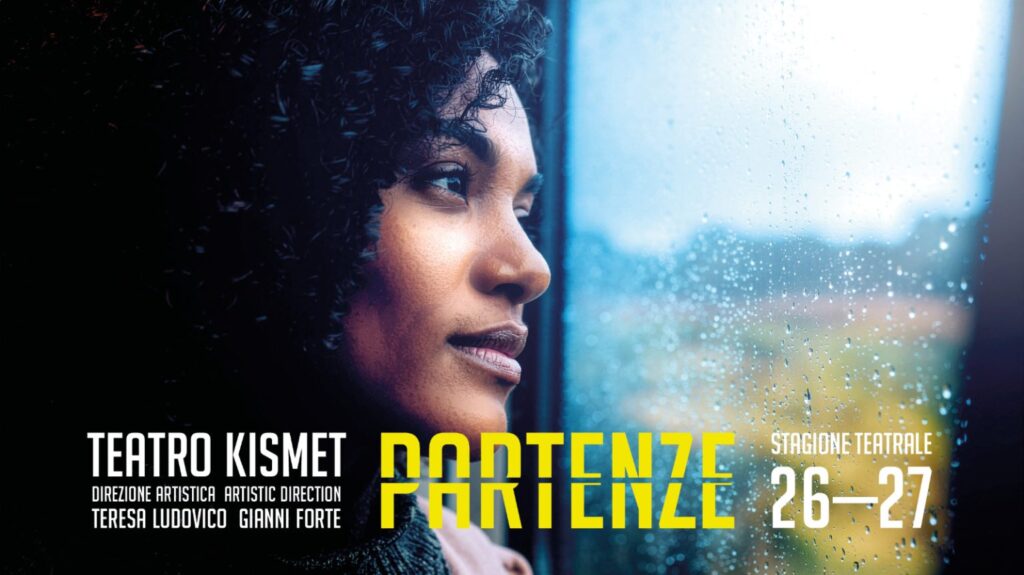
Da questa spinta nasce la stagione 2026/2027 dei Teatri di Bari, che abbiamo voluto chiamare PARTENZE. Dopo RINASCENZA, si apre un nuovo movimento: un invito a rimetterci in cammino, a percorrere strade inattese, a lasciare il conosciuto, a immaginare possibilità inesplorate e direzioni ancora da tracciare. A partire da oggi e nelle settimane a venire ne sveleremo progressivamente i contenuti.
Con fiducia e riconoscenza
Teresa Ludovico
Gianni Forte
Direttori artistici dei Teatri di Bari
Cooperativa Tric – Teatri di Bari – P.iva : 07685700721 – Privacy Policy